
A few simple steps
From USB cable
to your first pixels.
Install Owlanzi from your computer. Then set up Wi-Fi, your Owlet account and the display from your phone.
1. What you need
- Ulanzi TC001: This firmware is only intended for this ESP32 display with 4 MB flash.
- USB-C data cable and computer: A charging-only cable will not work. Use a browser with Web Serial support, such as Chrome or Edge.
- 2.4 GHz Wi-Fi with internet access: Have your network name and password ready.
- Owlet sock, base station and account: Set up your sock in the Owlet app first. Read the model and account compatibility notes.
- Phone or laptop: Connect it to the clock’s setup Wi-Fi after installation.
Back up existing settings. USB installation replaces the firmware, partition table and device settings. It removes any existing AWTRIX installation. Writing only starts after you select a device and confirm installation in the wizard.
2. Install directly in your browser
- Open the Owlanzi installer over HTTPS on your computer. The page checks browser support automatically.
- Connect the TC001 using a USB data cable.
- If the clock is not detected or cannot connect, unplug it, hold the middle button and reconnect the USB cable. Then release the button.
- Click Install Owlanzi and choose your clock’s serial USB port.
- Choose installation in the wizard and confirm that the existing firmware and settings will be erased. Keep the clock connected while writing.
- Wait for the success message. If needed, restart the clock without holding a button.
3. Connect Wi-Fi and Owlet
- On its first start, the clock opens a Wi-Fi network named
owlanzi. Connect your phone. This is an open setup network without internet access; stay connected anyway. - The setup page usually opens automatically. If it does not, open http://192.168.4.1 in your browser while connected to this network.
- Select your home 2.4 GHz Wi-Fi and enter its password.
- Enter your Owlet email address, password and account region: Europe or Rest of world.
- Save your settings. The clock restarts and joins your home network. Reconnect your phone to your usual Wi-Fi, too.
You enter these credentials only on the clock’s local setup page. This public website does not request them. The clock uses them to sign in to the required Owlet services.
4. Make the display your own
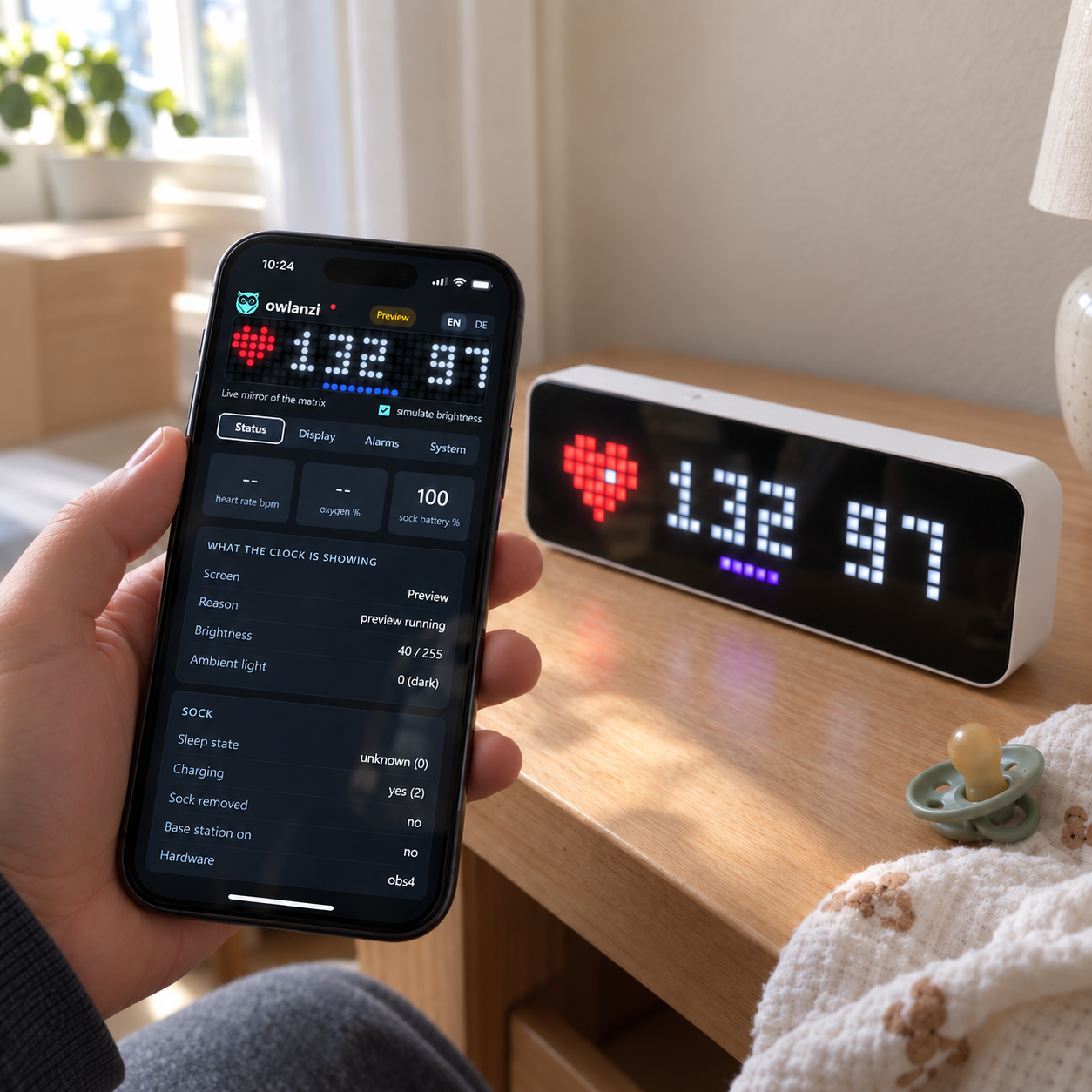
Find the clock’s local IP address in your router’s device list. Open it in a browser on the same home network. Under Display, adjust colours and brightness. The device interface supports English and German.
Automatic dimming uses the TC001’s light sensor. Choose day and night brightness to suit your room. You can protect the local web interface with a password in system settings.
Before installing, try the interactive display to explore example states and the display layout.
If something does not work straight away
No USB port is offered.
Try another data cable or USB port without a hub. Close other applications using the serial port. Start the clock with its middle button held down. If needed, use a driver matching the USB chip from the official hardware documentation.
The installer will not start.
Open this page directly in a browser tab on your computer. USB installation needs HTTPS and Web Serial. Embedded browsers can block USB access. If the firmware cannot load, check your connection and select Reload installer.
The clock keeps restarting after flashing.
If the log says Detected size(4096k) and image header(8192k), an older installer wrote an 8 MB image to a 4 MB clock. Reload the website and check that the installer shows Firmware 1.0.2 or later. Reinstall via USB and confirm erasing the previous installation. This rewrites the bootloader, partition table and application for 4 MB. An OTA update cannot repair this layout. Then set up Wi-Fi and Owlet again.
My phone says “No internet”.
This is expected on the owlanzi setup network. Stay connected and open http://192.168.4.1 manually. Check that your phone has not switched to mobile data or another Wi-Fi network.
No readings appear.
Check the sock, base station and readings in the Owlet app first. Check Wi-Fi, internet access, credentials and account region. Available cloud readings are not necessarily current. See the compatibility notes.
I want to return to AWTRIX.
Use the official AWTRIX USB web flasher. An OTA update from Owlanzi is not sufficient because AWTRIX needs a different partition table.
An extra glance.
Owlanzi is not a medical device. It does not replace the Owlet app, base station or medical monitoring. Data may be delayed, incomplete or incorrect. Do not use this display for medical decisions.